Why Convert Images to PDF?
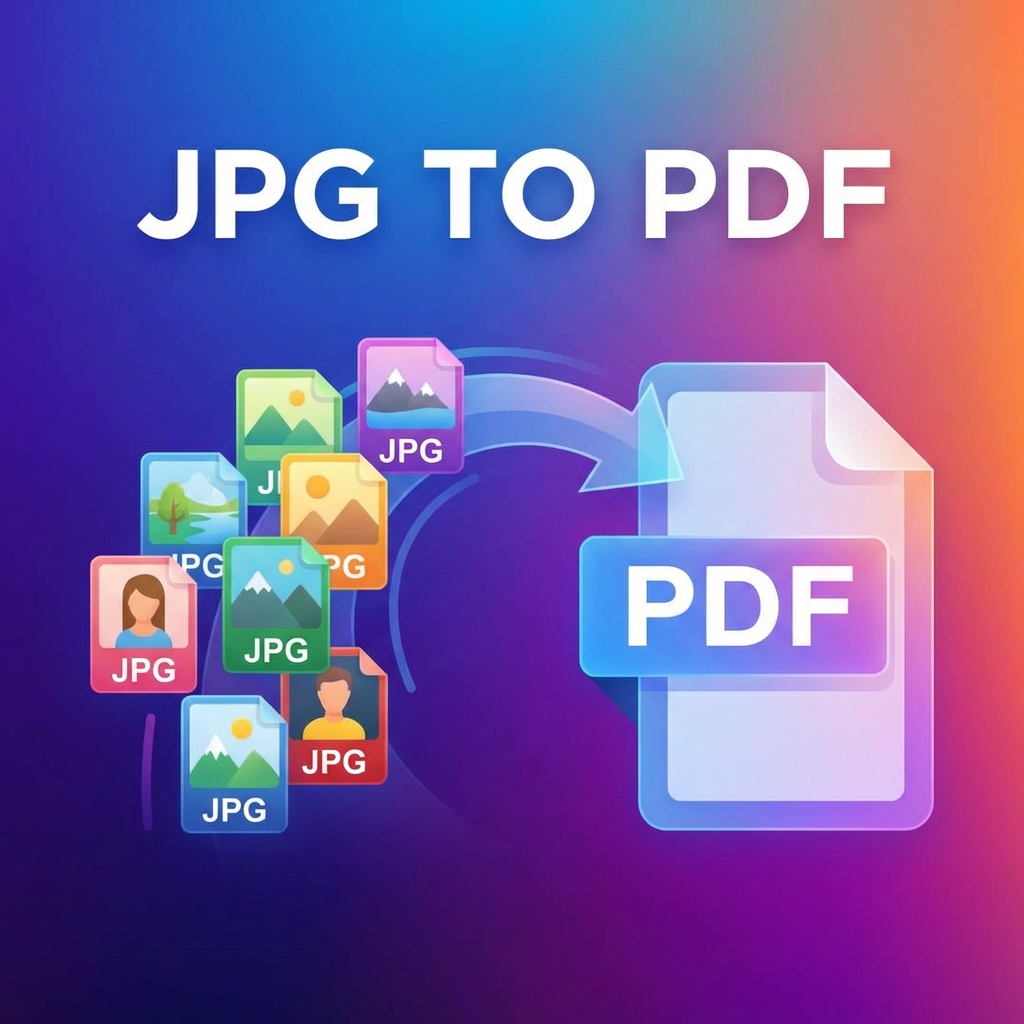
Creating PDFs from images is essential for:
- Sharing photo collections
- Creating digital portfolios
- Archiving scanned documents
- Professional presentations
Supported Image Formats

- JPG/JPEG - Photos, web images
- PNG - Graphics with transparency
- BMP - Windows bitmap
- GIF - Simple graphics
- TIFF - High-quality scans
- WebP - Modern web format
How to Convert with PDFMody
- Go to PDFMody JPG to PDF
- Upload multiple images
- Arrange in desired order
- Choose page size and orientation
- Set margins if needed
- Click "Convert" and download
Page Layout Options
| Option | Best For |
|---|---|
| A4 Portrait | Documents, letters |
| A4 Landscape | Wide images |
| Letter | US documents |
| Fit to Image | Photos, posters |
Quality Settings
- High Quality: Best for printing (larger file)
- Medium: Good balance for sharing
- Web: Optimized for online viewing
Pro Tips
- Use consistent image sizes for uniform pages
- Consider page breaks for sections
- Add margins for professional look
- Optimize images before conversion if file size matters
FAQ
Can I add multiple images to one page?
Yes, PDFMody supports multiple images per page with grid layouts.
Will the image quality be preserved?
Yes, original quality is maintained unless you choose to compress.
Conclusion
Create beautiful PDFs from your images with PDFMody!