The Challenge of PDF to Excel Conversion
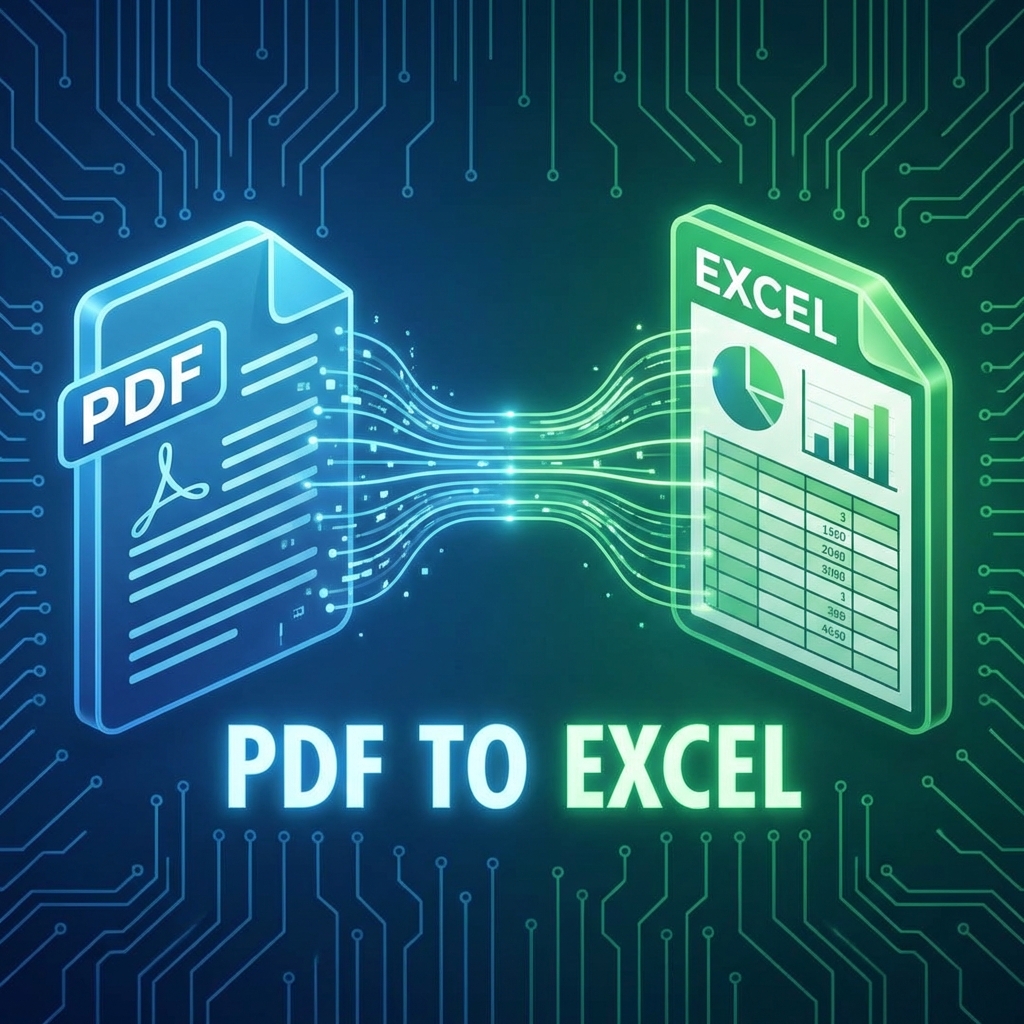
PDFs are designed for viewing, not editing. When you need to extract tables and data into Excel, traditional copy-paste fails miserably. Cells merge, numbers become text, and formatting disappears. Let's fix that.
Why PDF to Excel is Difficult

- PDFs don't store actual table structures
- Text is positioned, not organized in cells
- Multiple column formats confuse extractors
- Merged cells create chaos
Method 1: PDFMody PDF to Excel (Recommended)
The easiest and most accurate method:
- Visit PDFMody PDF to Excel
- Upload your PDF
- AI automatically detects tables
- Download your Excel file
✅ Works with complex tables, multi-page documents, and mixed content!
Method 2: Adobe Acrobat Export
- Open PDF in Acrobat Pro
- Go to Export PDF → Spreadsheet → Excel
- Choose settings and export
Method 3: Microsoft Excel Import
- Open Excel
- Go to Data → Get Data → From File → From PDF
- Select tables to import
- Edit in Power Query if needed
Comparison of Methods
| Feature | PDFMody | Adobe | Excel |
|---|---|---|---|
| Accuracy | 98% | 95% | 85% |
| Speed | Fast | Medium | Slow |
| Cost | Free | $15/mo | Included |
| Multi-page | ✅ | ✅ | ❌ |
Tips for Better Results
- Use clean PDFs: Digital PDFs work better than scanned
- Check table boundaries: Clear borders help detection
- Review after conversion: Always verify numbers
- Handle merged cells: May need manual adjustment
Common Issues and Solutions
| Problem | Solution |
|---|---|
| Numbers as text | Format cells as numbers in Excel |
| Missing columns | Use PDFMody for better detection |
| Merged cells | Unmerge and reorganize |
FAQ
Will formulas be preserved?
No, PDFs don't contain Excel formulas. You'll need to recreate them.
Can I extract specific tables only?
Yes! PDFMody lets you select which pages/tables to extract.
Conclusion
Stop wasting time with manual data entry. Use PDFMody's AI-powered PDF to Excel conversion for accurate, fast results.