Professional Page Numbering
Page numbers make your PDFs more professional and easier to navigate. This guide covers different numbering formats and placement options.
Why Add Page Numbers?
- Easier navigation and reference
- Professional appearance
- Required for legal and academic documents
- Better organization for printing
How to Add Page Numbers
- Go to PDFMody Add Page Numbers
- Upload your PDF
- Choose number format (1, 2, 3... or i, ii, iii...)
- Select position (top/bottom, left/center/right)
- Set starting number
- Exclude specific pages if needed
- Download your numbered PDF
Number Format Options
| Format | Example | Best For |
|---|---|---|
| Arabic | 1, 2, 3, 4 | General documents |
| Roman lowercase | i, ii, iii, iv | Preface, intro |
| Roman uppercase | I, II, III, IV | Chapters |
| Letters | A, B, C, D | Appendices |
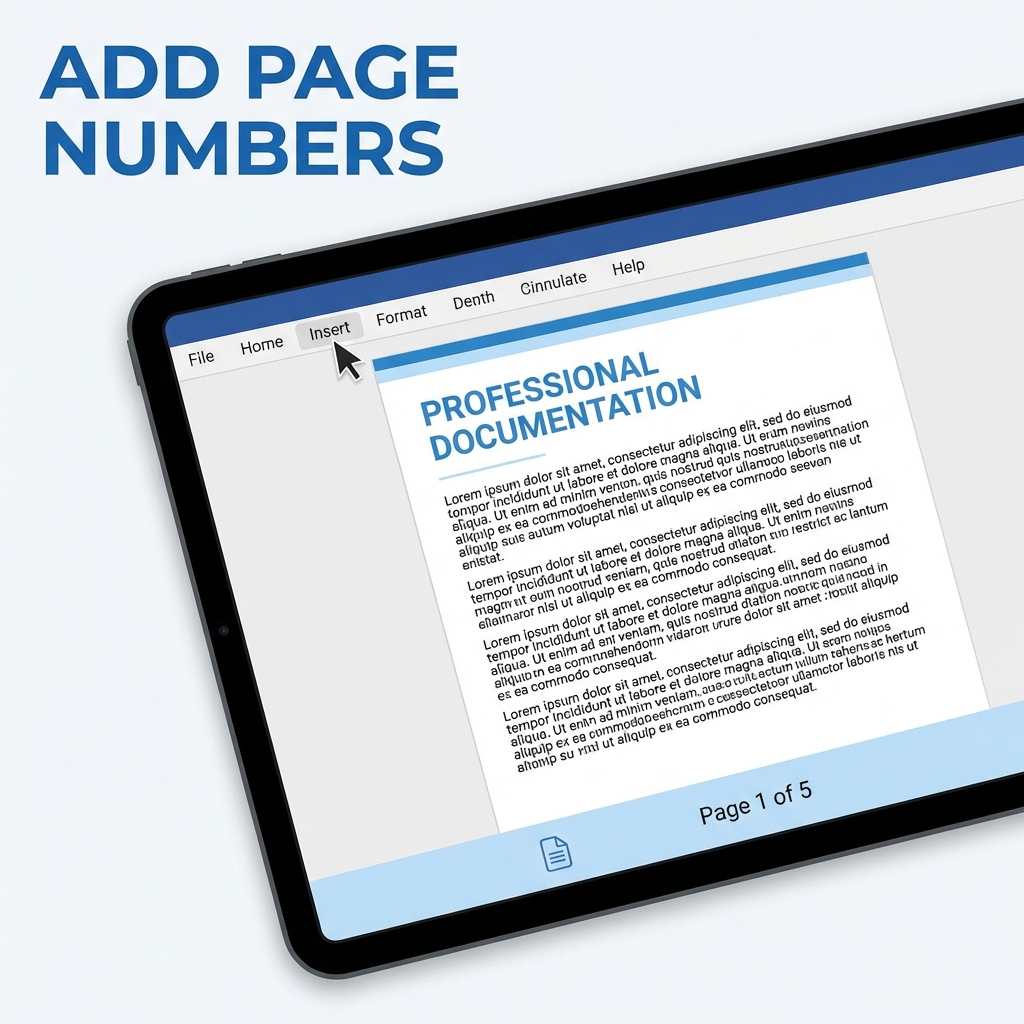
| Custom | Page 1 of 10 | Reports |
Position Options
- Bottom center: Most common, professional look
- Bottom right: Easy to see when flipping pages
- Top right: Standard for reports
- Alternating: For book-style printing
Advanced Options
- Skip cover page and table of contents
- Start numbering from a specific page
- Add "Page X of Y" format
- Include chapter numbers
FAQ
Can I start numbering from page 3?
Yes! PDFMody lets you specify which page to start numbering and what number to start with.
Can I have different formats in one document?
Yes, use Roman numerals for intro pages and Arabic for main content.
Conclusion
Adding page numbers is quick and easy with PDFMody. Make your documents more professional today!