Protect Your Documents with Watermarks
Watermarks help protect your intellectual property, brand your documents, and indicate document status. Learn how to add professional watermarks to your PDFs.
Types of PDF Watermarks
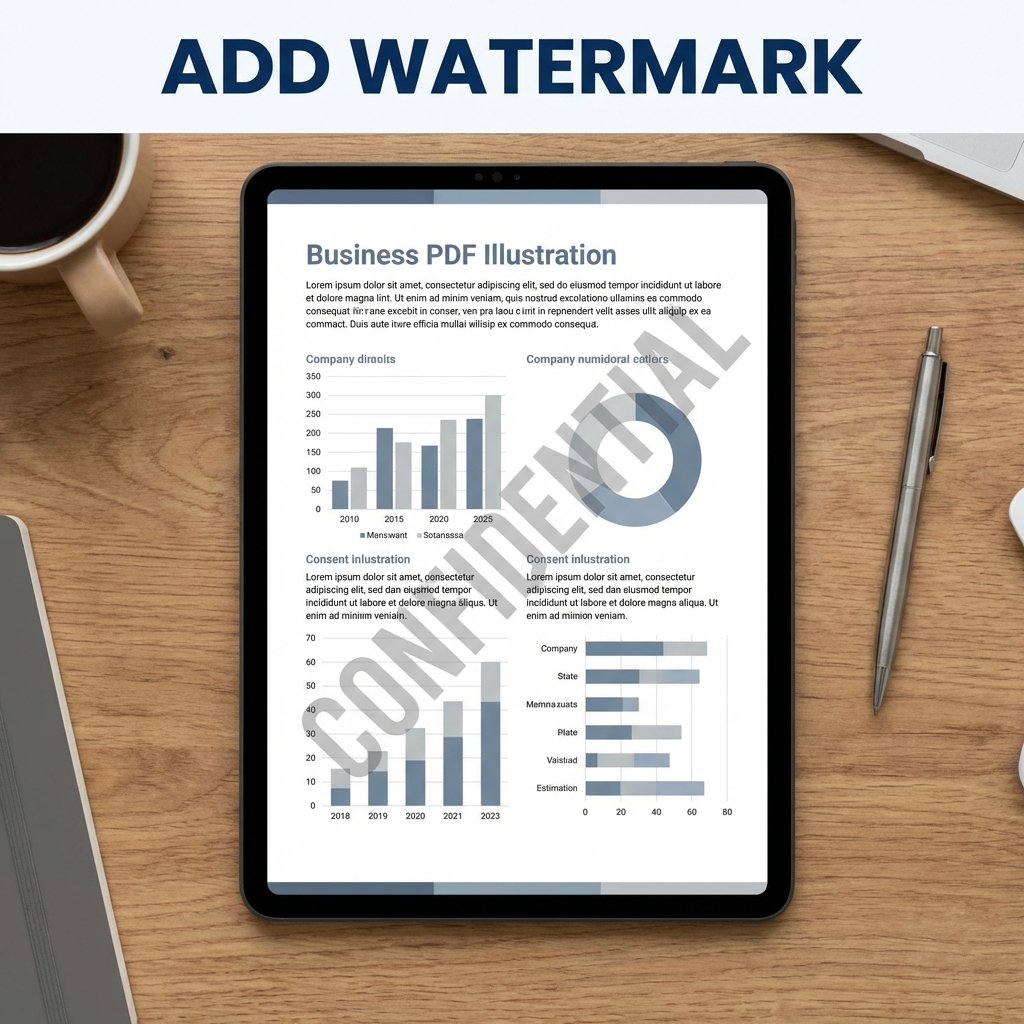
- Text watermarks: "CONFIDENTIAL", "DRAFT", company name
- Image watermarks: Logos, stamps, signatures
- Dynamic watermarks: Date, page numbers, user info
How to Add a Text Watermark
- Go to PDFMody Watermark PDF
- Upload your PDF document
- Enter your watermark text
- Customize: font, size, color, opacity
- Choose position (center, corner, diagonal)
- Apply to all pages or specific pages
- Download your watermarked PDF
How to Add an Image/Logo Watermark
- Visit PDFMody Watermark
- Upload your PDF
- Choose "Image watermark"
- Upload your logo (PNG with transparency works best)
- Adjust size and position
- Set opacity (20-40% is typical for logos)
- Apply and download
Watermark Best Practices
| Purpose | Recommended Settings |
|---|---|
| Confidential docs | Large diagonal text, 30% opacity |
| Branding | Corner logo, 20-40% opacity |
| Draft status | Center "DRAFT", red, 50% opacity |
| Copyright | Footer text, small, 60% opacity |
Common Watermark Use Cases
- Legal documents: Mark as draft or final
- Business proposals: Add company branding
- Photography: Copyright protection
- Internal documents: Mark as confidential
FAQ
Can watermarks be removed?
Properly applied watermarks are difficult to remove without leaving traces.
Will watermarks affect printing?
Yes, watermarks print along with the document. Adjust opacity for best results.
Conclusion
Adding watermarks is an essential skill for protecting your documents. Try PDFMody's free watermark tool today!