Automate Repetitive PDF Tasks
Stop wasting time on repetitive PDF tasks. Learn how batch processing can save you hours of manual work.
What is Batch Processing?
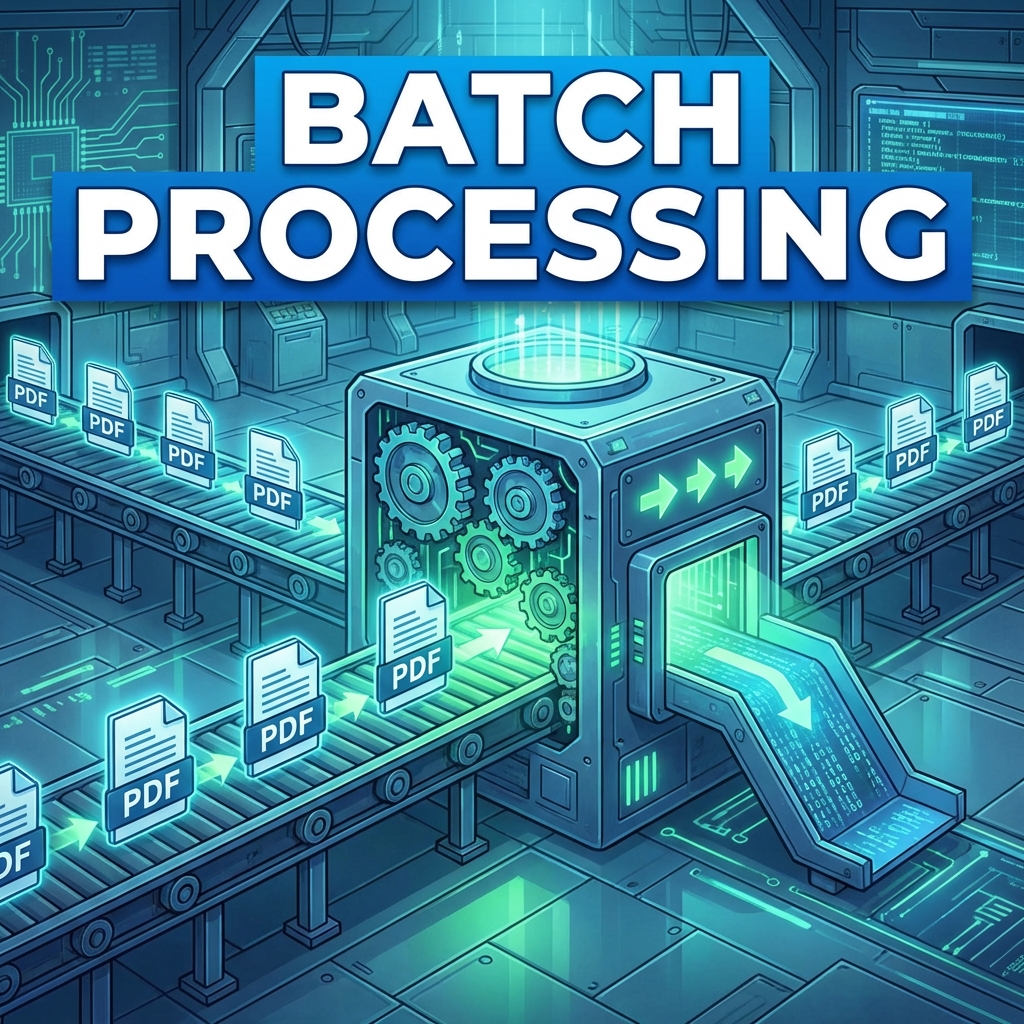
Batch processing lets you apply the same operation to multiple PDF files at once. Instead of processing one file at a time, handle hundreds in seconds.
Common Batch Operations
- Convert: PDF to Word, Excel, or images
- Compress: Reduce file sizes
- Watermark: Add branding to all files
- Merge: Combine multiple PDFs
- Rename: Standardize file names
- OCR: Make scanned PDFs searchable
How to Batch Process PDFs
- Visit PDFMody Batch Process
- Upload multiple PDF files
- Select the operation to perform
- Configure settings (apply to all)
- Click "Process All"
- Download processed files as ZIP
Time Savings Calculator
| Files | Manual Time | Batch Time | Saved |
|---|---|---|---|
| 10 files | 30 min | 1 min | 29 min |
| 50 files | 2.5 hrs | 3 min | 2+ hrs |
| 100 files | 5 hrs | 5 min | 4+ hrs |
| 500 files | 25 hrs | 15 min | 24+ hrs |
Best Use Cases
- 📄 Converting archived documents
- 🏢 Adding company watermarks to all files
- 📧 Compressing files before email distribution
- 🔍 Making scanned documents searchable
- 📁 Standardizing document formatting
Pro Tips for Batch Processing
- Organize files in folders first
- Test with a small batch before full run
- Use consistent naming conventions
- Check sample output before downloading all
- Keep original files as backup
Automation Workflows
Combine batch processing with:
- Cloud storage (Google Drive, Dropbox)
- Email automation
- Document management systems
- Script-based workflows
FAQ
Is there a file limit?
PDFMody supports up to 100 files per batch operation.
Can I process different file types?
Yes, you can mix PDFs and other supported formats in the same batch.
Conclusion
Stop wasting time on repetitive tasks. Batch processing is your productivity superpower!