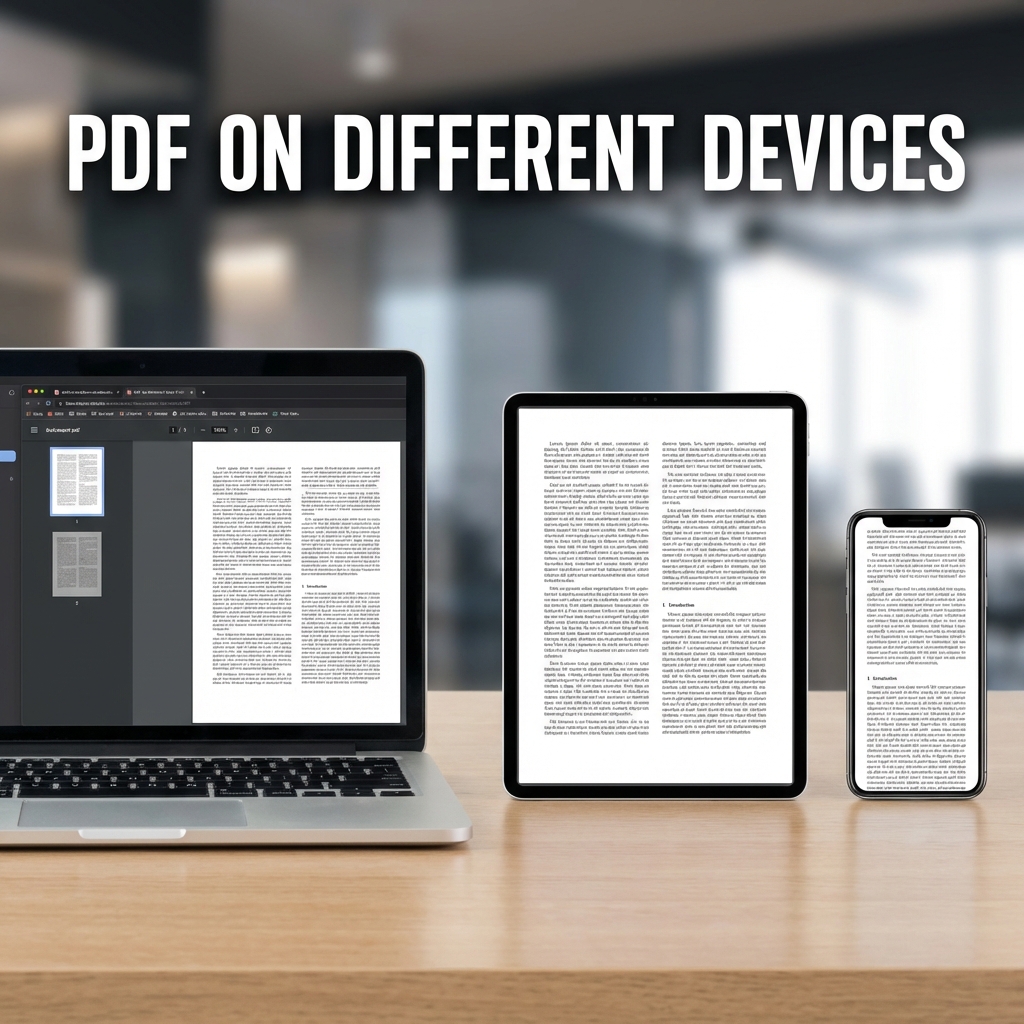
Why PDFs Look Different on Different Devices
Ever noticed your PDF looks perfect on your computer but strange on your phone? Let's understand why this happens and how to fix it.
Common Display Issues
- Fonts appearing different or substituted
- Layout breaking on mobile devices
- Colors looking different on screens
- Images appearing blurry or pixelated
- Interactive elements not working
Why This Happens
1. Font Issues
PDFs may reference fonts not installed on the viewing device. Solution: Embed all fonts.
2. Screen Size Differences
Fixed layouts designed for A4 don't adapt to phone screens. Solution: Use reflowable PDFs.
3. PDF Reader Differences
Different apps render PDFs slightly differently. Solution: Test on multiple readers.
4. Color Profiles
RGB vs CMYK color spaces display differently. Solution: Use standard sRGB.
How to Ensure Consistent Display
| Issue | Solution |
|---|---|
| Font changes | Embed all fonts |
| Poor mobile viewing | Use larger fonts, simpler layouts |
| Blurry images | Use 300 DPI for print, 150+ for screen |
| Color shifts | Use RGB color mode |
Best Practices for Cross-Device PDFs
- Embed fonts: Always embed all fonts used
- Optimize file size: Smaller files load faster on mobile
- Use standard fonts: Arial, Times, Calibri work everywhere
- Test on multiple devices: Check phone, tablet, computer
- Compress wisely: Balance quality and file size
Testing Your PDF
- View on different browsers (Chrome, Firefox, Safari)
- Test on iOS and Android devices
- Try different PDF readers (Adobe, Preview, Chrome)
- Check with zoom levels (50%, 100%, 200%)
FAQ
How do I embed fonts?
Most PDF creation tools have an "embed fonts" option in settings or export options.
Why do colors look different?
Screen calibration, color profiles, and brightness settings all affect color appearance.
Conclusion
Creating PDFs that look great everywhere requires attention to fonts, images, and testing. Use PDFMody to optimize your PDFs!